Plan a week of meals, share the shopping list
Tidywell turns the back-of-the-fridge question — what are we eating this week? — into a quick weekly plan, a shared shopping list, and one less argument on Tuesday.
Seven polaroids, one for each day
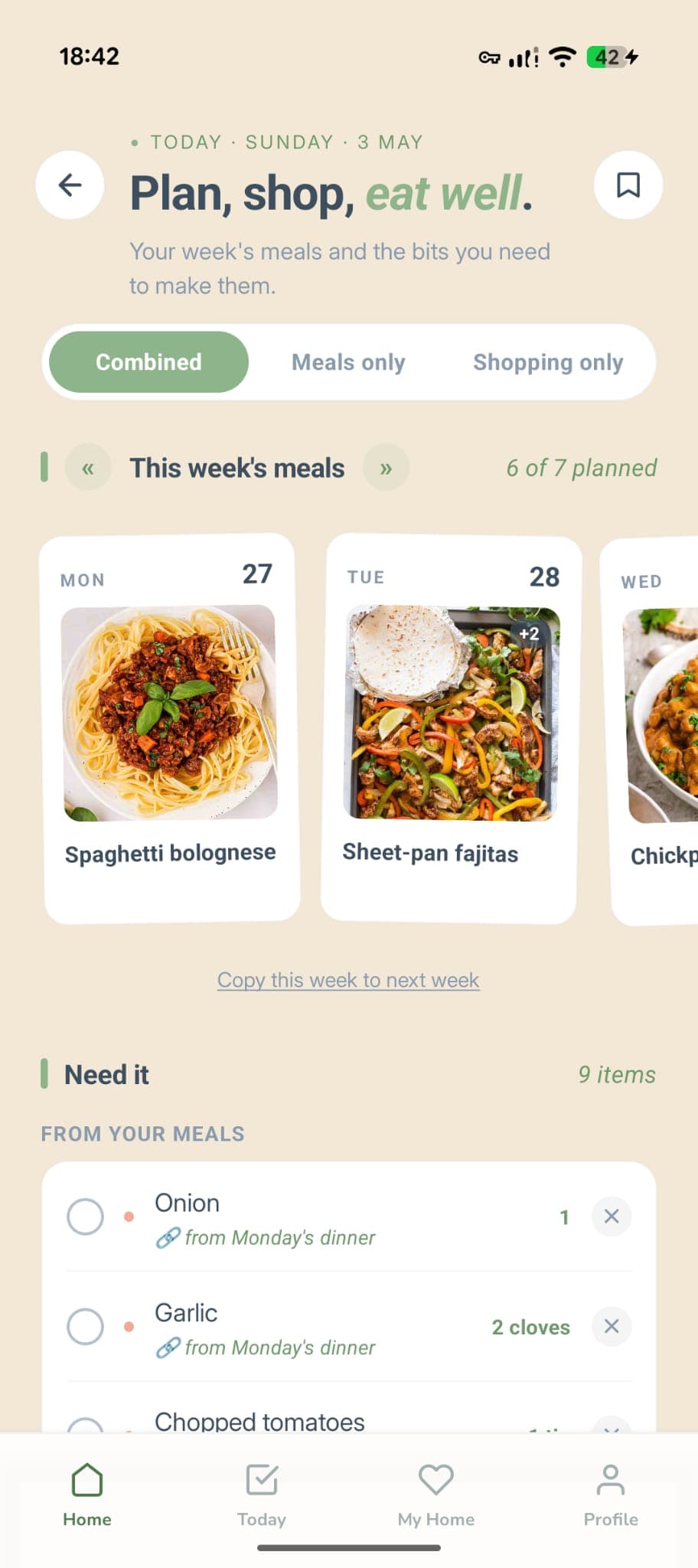
Open the Home tab and tap Plan, shop, eat well. You'll see seven little day-cards — Monday through Sunday — with today's card gently highlighted. Each day holds up to four meals (Breakfast, Lunch, Dinner, Snack), but you don't have to fill them all. One meal a day is plenty for most weeks.
How a day works
Tap a day to open the editor
The card expands into a small panel. You'll see the four time-based slots — pick whichever you actually want to plan. Empty slots stay quietly tucked away, ready when you need them.
Type the meal name
“Spaghetti bolognese”, “Leftover curry”, “Whatever's in the freezer” — write whatever's useful. The slot label (Breakfast, Lunch…) is renameable too if you'd rather call it Brunch or Pre-gym snack.
Pin one meal per day
Pinning lifts a meal onto the polaroid card and lets you attach a photo. Only one meal can be pinned per day — pin a new one and the previous one quietly steps back. Useful for the “main event” meal you actually want a record of.
It updates as you type
There's no Save button. Edits sync to the cloud as soon as you finish typing, and to the rest of your household within about a second.
Attach ingredients to any meal
Inside each meal slot you can add ingredient chips. Tap “+ Add”, type something like “400g Mince” or just “Onion”, and press Return. The chip drops onto the meal and waits there until you push it to the shopping list.
Spaghetti bolognese
Quantities are optional
“2 onions” and “onion” both work. The bit before the · is treated as the quantity, the bit after is the item — but if you skip the dot entirely, Tidywell just stores the whole thing as the item name. No parsing, no autocorrect, no surprises.
“Add to shopping list” copies every ingredient over
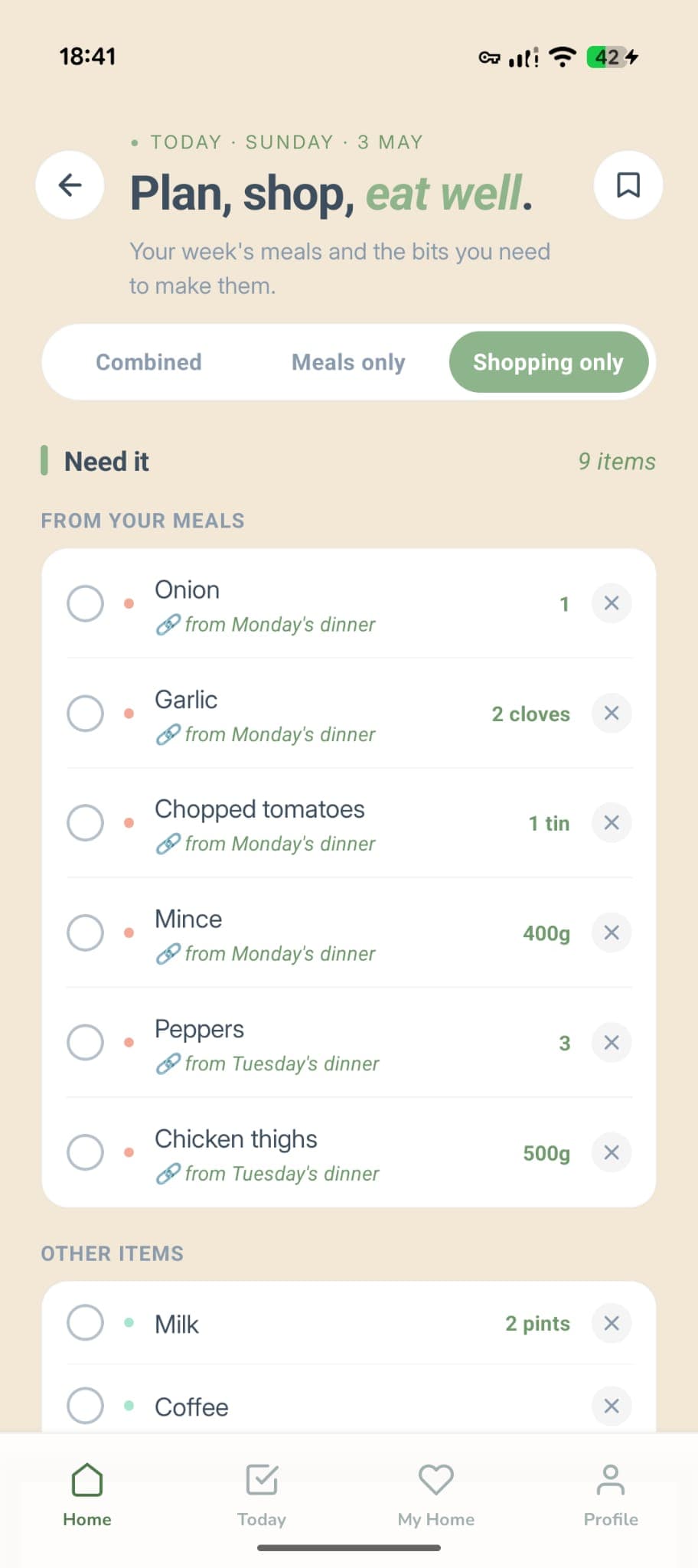
Each meal card has an Add to shopping list button. Tap it and every ingredient on that meal becomes a row on your shared shopping list, tagged with which day and slot it came from. Push individual meals as you plan them, or do the whole week in one go on a Sunday.
You can add things by hand too
There's a quick-add bar at the top of the shopping list. Type “Milk” and hit Return — it joins the list under Other items, separate from your meal-derived items so you can still see what was planned and what was a top-up.
Tick things off as you shop
Tap the checkbox to mark an item as bought. It moves into the Got it section at the bottom, which stays collapsed until you actually have something there. Tap it again if you forgot something.
Snap a photo of the meal you actually made
Once a meal is pinned, the polaroid card shows a photo area. Tap it to grab one from your camera roll or take a fresh one. The photo lives on the day, and disappears if you unpin or delete the meal.
Photos and pinning go together
Photos only attach to pinned meals — that's deliberate. Pinning is the “this is the meal of the day” signal, and the photo is the receipt. Unpin to clear the photo, or delete the slot entirely if it never happened.
Everyone in the household sees the same plan
The meal plan and shopping list are both household-shared. Whoever happens to be holding their phone can plan, push, tick or delete — everyone else sees it within about a second.
No “whose list is this” confusion
There's one weekly plan and one shopping list per household, not one per person. If your partner adds “coffee” while you're already in Sainsbury's, you'll see it on the next refresh.
Works without signal too
Edits made without a connection are saved locally and pushed up when you're back online. Pull-to-refresh on the screen if something looks stale.
The meals you cook all the time, one tap away
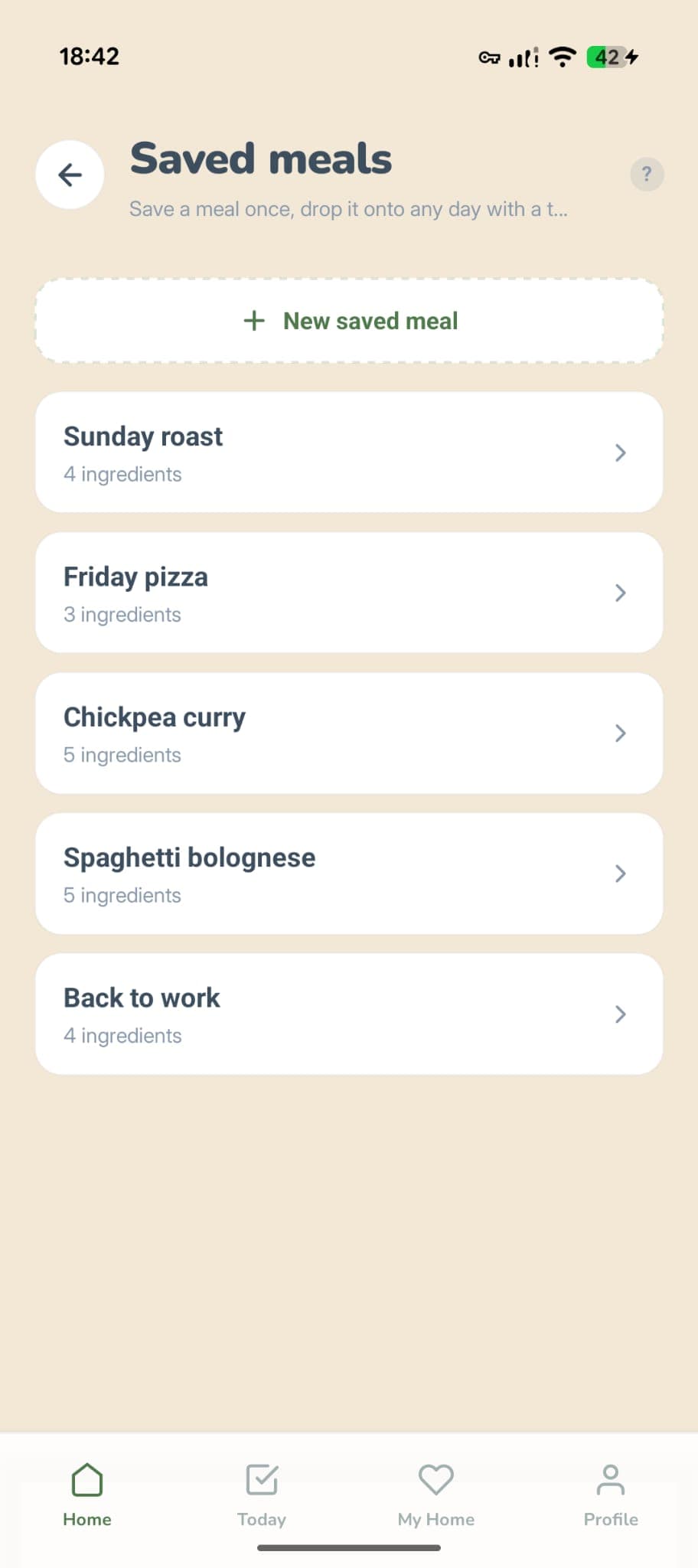
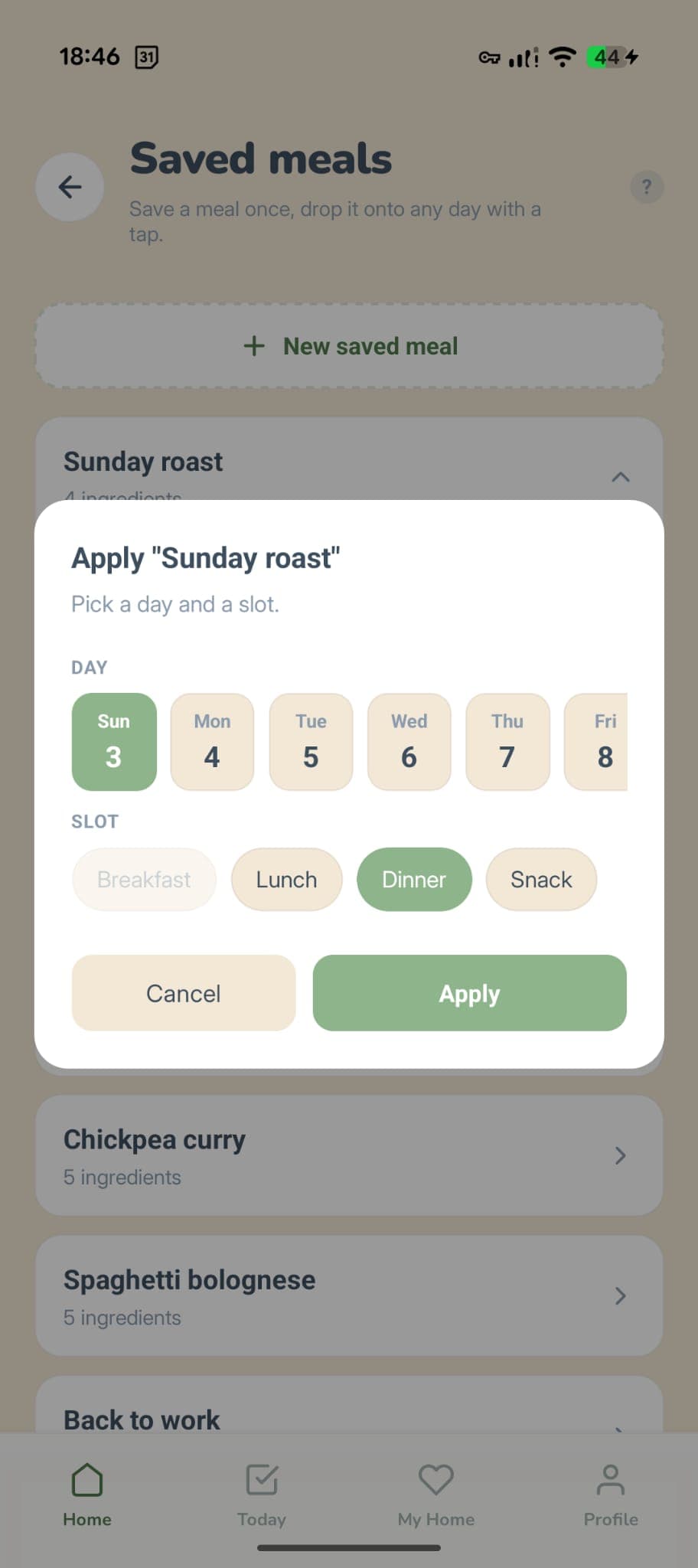
Save any meal you've planned as a re-usable template. Next week, instead of re-typing five ingredients for spag bol, you tap once, pick a day, done. Templates are shared with your household so anyone can apply them.
Saved meals live in their own little library
Pick a day and a slot — done
Meal plan is Premium. The shopping list is free.
We split it down the middle. The shopping list is fully free for everyone — type things in, tick them off, share with your household. The week-view meal plan, ingredient chips, the photo per day and the “push to shopping” shortcut are part of Premium.
Free forever
Shared shopping list with quick-add, tick-to-buy, “Got it” section, and full household sync. Add anything you like by hand.
Premium adds
The seven-day meal plan, ingredient chips per meal, push-to-shopping, the pinned-meal photo, and meal templates you can reuse next week.