Inviting household members & Kid Mode
Tidywell works best as a team. Here's how to invite family, flatmates, or kids, and what Kid Mode actually does.
How to invite household members
Anyone in your household can join Tidywell and share the same rooms, tasks, and cleaning schedule. You just need to send them a link or a code.
Open the Members screen
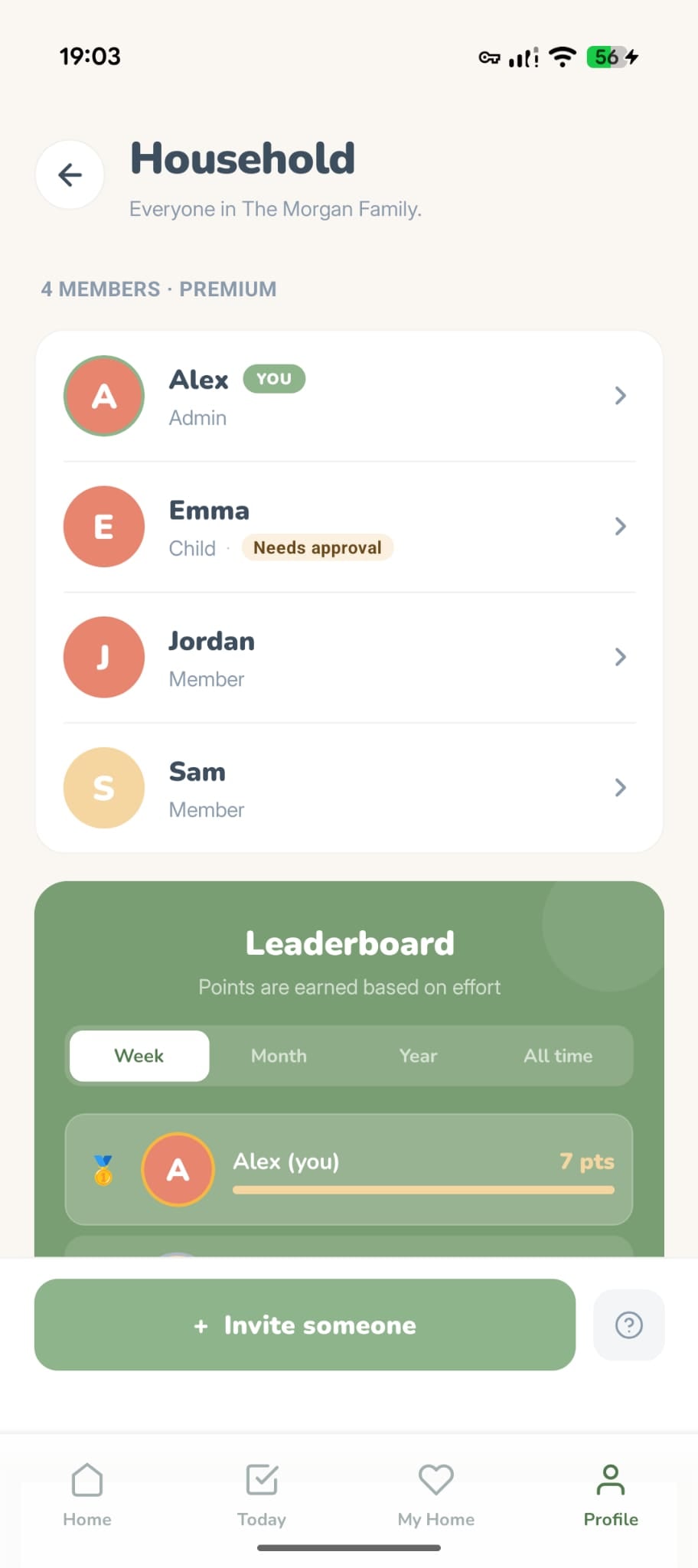
Go to the Profile tab and tap Household Members. You'll see everyone currently in your household.
Choose the member type
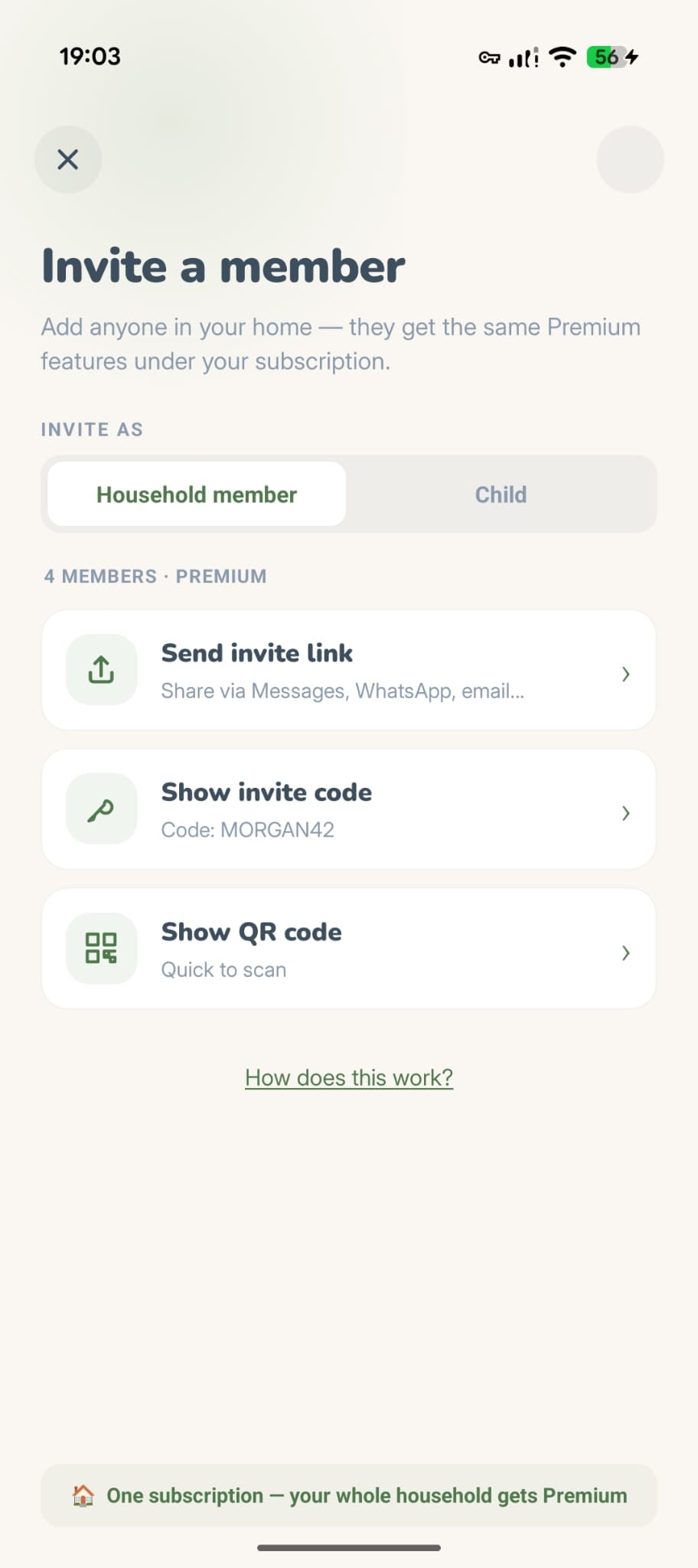
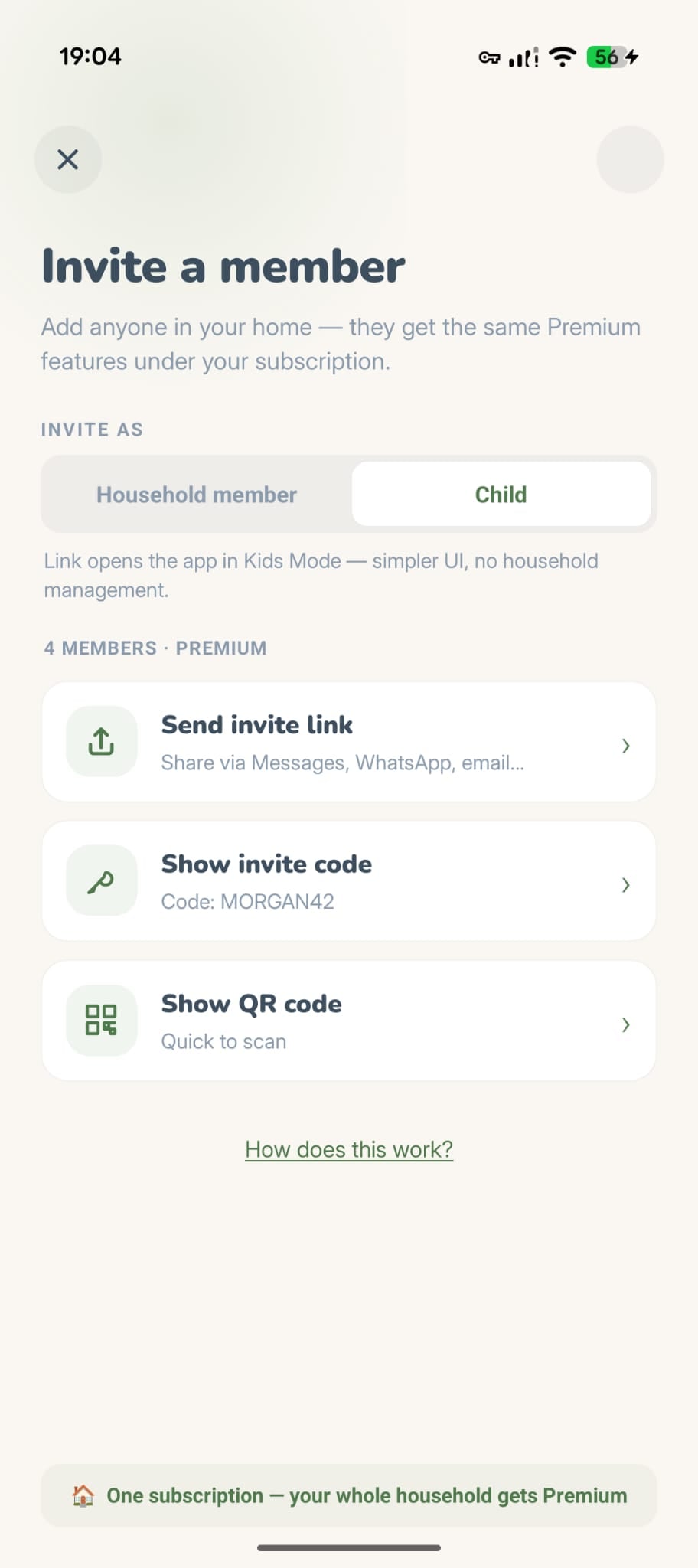
Tap the Invite button. You'll see two options: Member or Child. Pick Child if you're inviting a kid. They'll get a simplified experience with parental controls.
Send the invite
Pick how you'd like to share:
Share link
Send via Messages, WhatsApp, or email.
Invite code
Show a 6-character code they can type into the app.
QR code
Coming soon.
They join your household
When they tap the link or enter the code, they'll see a preview of your household and can join with one tap. They'll immediately see your rooms, tasks, and schedule.
Free vs Premium
Free households can have up to 2 members. Need more? One Premium subscription unlocks unlimited members for the whole household. Everyone benefits, only one person pays.
What is Kid Mode?
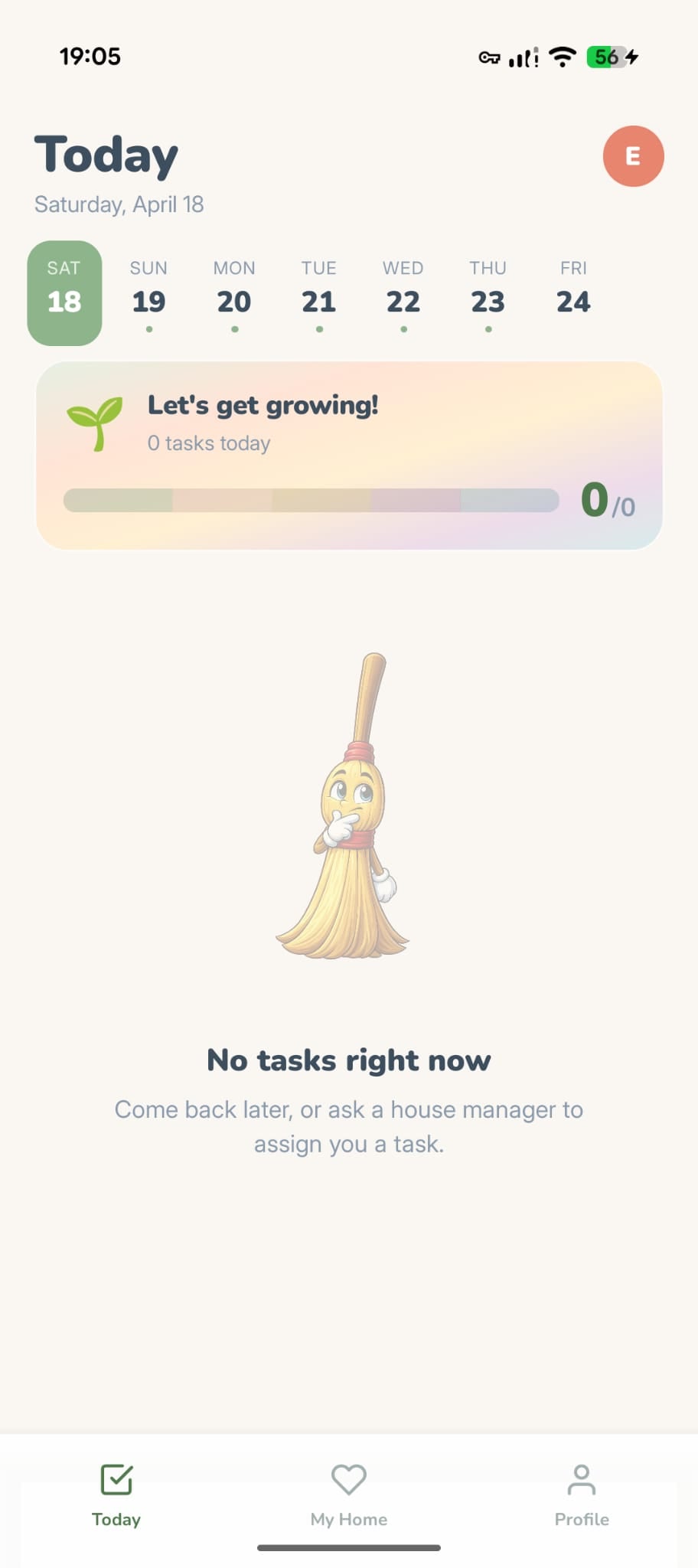
When you invite someone as a Child, they get a simplified version of Tidywell with no management controls and optional parental approval on completed tasks. It's designed so kids can help around the house without accessing settings they shouldn't touch.
What kids can do
- See tasks assigned to them
- Mark tasks as done
- Earn coins, streaks, and achievements
- Join household Live Sprints
- Take before/after photos as proof
- Spend coins on virtual furniture
- Use Focus Mode and the Spin-the-Wheel picker
Hidden from kids
- Create, edit, or delete chores
- See prices or upgrade prompts, or buy anything
- Invite new household members
- Access account or notification settings
- Change home layout or cleaning preferences
- View insights or vacation mode
- Approve other members' tasks
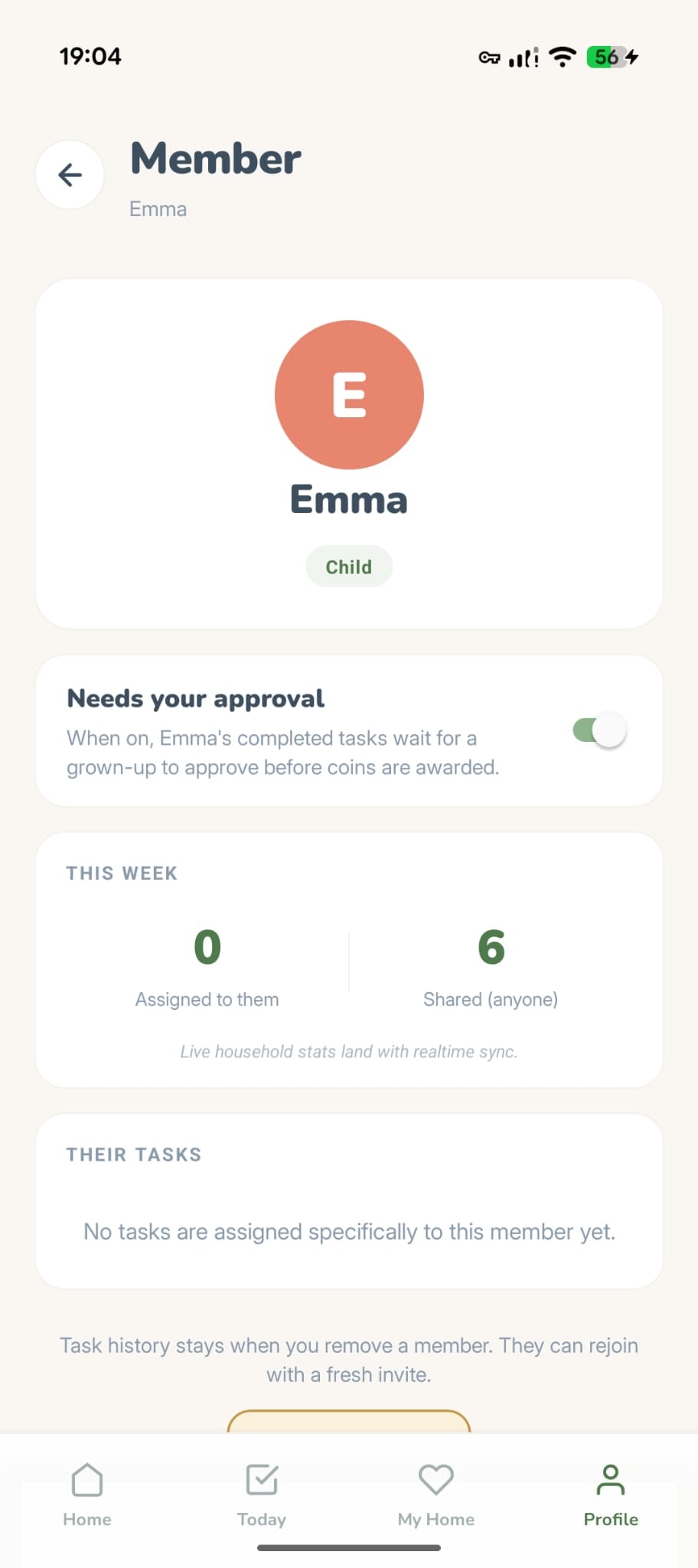
Optional: Require approval
Kids you invite have approval on by default: their finished chores wait for your OK before coins land. An admin — or the parent who added them — can change it any time from the child’s detail screen. Before/after photos make it easy to check.
Understanding roles
Every household member has one of three roles. The person who creates the household is automatically an Admin.
Full control. Can invite and remove members, manage rooms and tasks, change household settings, toggle Kid Mode approval, and restructure the home layout. The household creator is always an Admin.
Can complete tasks, invite others, participate in sprints, view the leaderboard, earn coins, and decorate the virtual home. Cannot remove members or restructure the home layout.
A simplified experience. Management screens (invite, settings, room management) are completely hidden, and kids can't create, edit, or delete chores. Parents can require approval before completions count. Kids earn coins at the same rate as everyone else — a chore is worth what it's worth.